> For clean Markdown of any page, append .md to the page URL.
> For a complete documentation index, see https://docs.todaytixgroup.com/llms.txt.
> For AI client integration (Claude Code, Cursor, etc.), connect to the MCP server at https://docs.todaytixgroup.com/_mcp/server.
# Creating Custom Reports
Custom reports give producers, ticketing managers, marketing teams, and anyone else working on a show granular visibility into their sales data. You choose the date ranges, the performances, the retailers, and the level of detail — then receive the report by email on whatever schedule you need.
Use custom reports to:
- **Understand sales patterns** — see how revenue breaks down by performance, by day, or by individual ticket
- **Reconcile finances** — match transactions against bank deposits, audit refunds, and track commission deductions
- **Feed external BI tools** — export as CSV and plug directly into Excel, Tableau, Power BI, or any other analytics platform for further visualisation and analysis
- **Keep stakeholders informed** — schedule recurring reports so your team (or your retailers, e.g. ticket agents) get regular updates without manual work
## Prerequisites
- A partner portal account at [portal.poweredbytodaytix.com](https://portal.poweredbytodaytix.com)
- At least one show on sale
## Open the report builder
1. Log in to the partner portal.
2. Navigate to **Insights > Custom** in the sidebar.
3. Click **Create new report**.
4. Select **Custom report** (not Invoice report — see [Invoicing](/partner-portal/invoicing) for invoice setup) and click **Continue**.
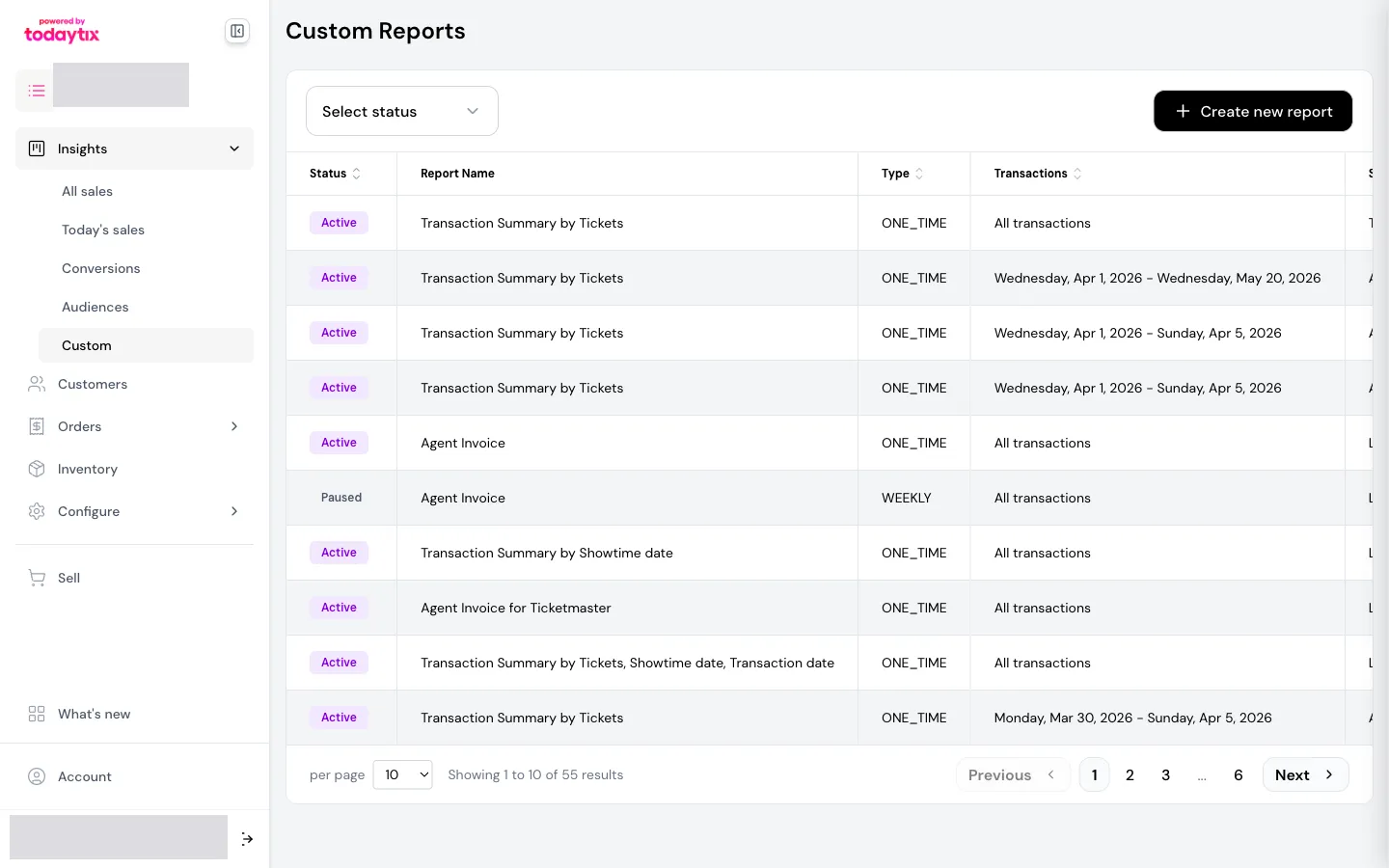
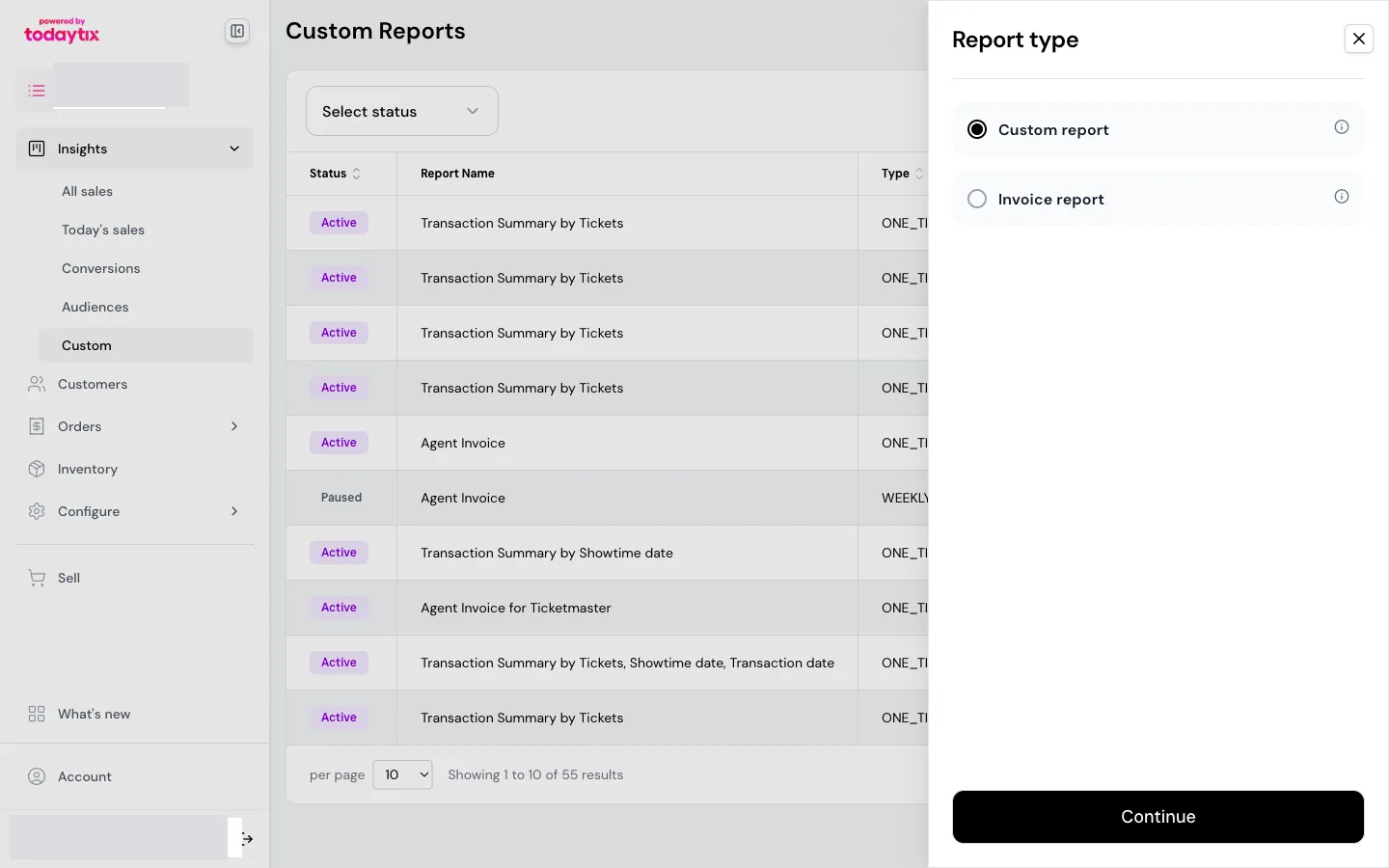
The report builder is a 3-step wizard: date parameters, report details, and delivery options.
## Step 1: Date parameters
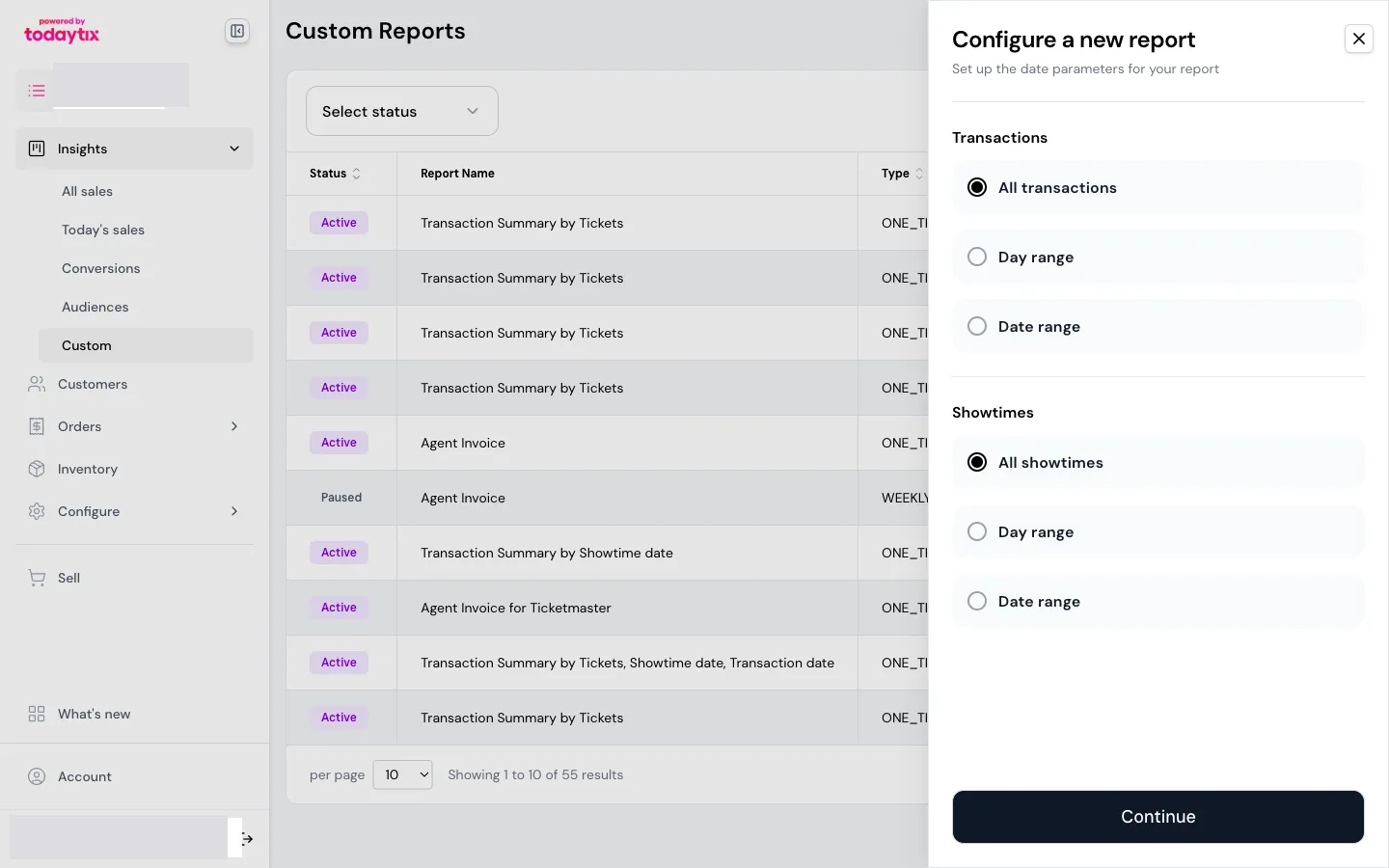
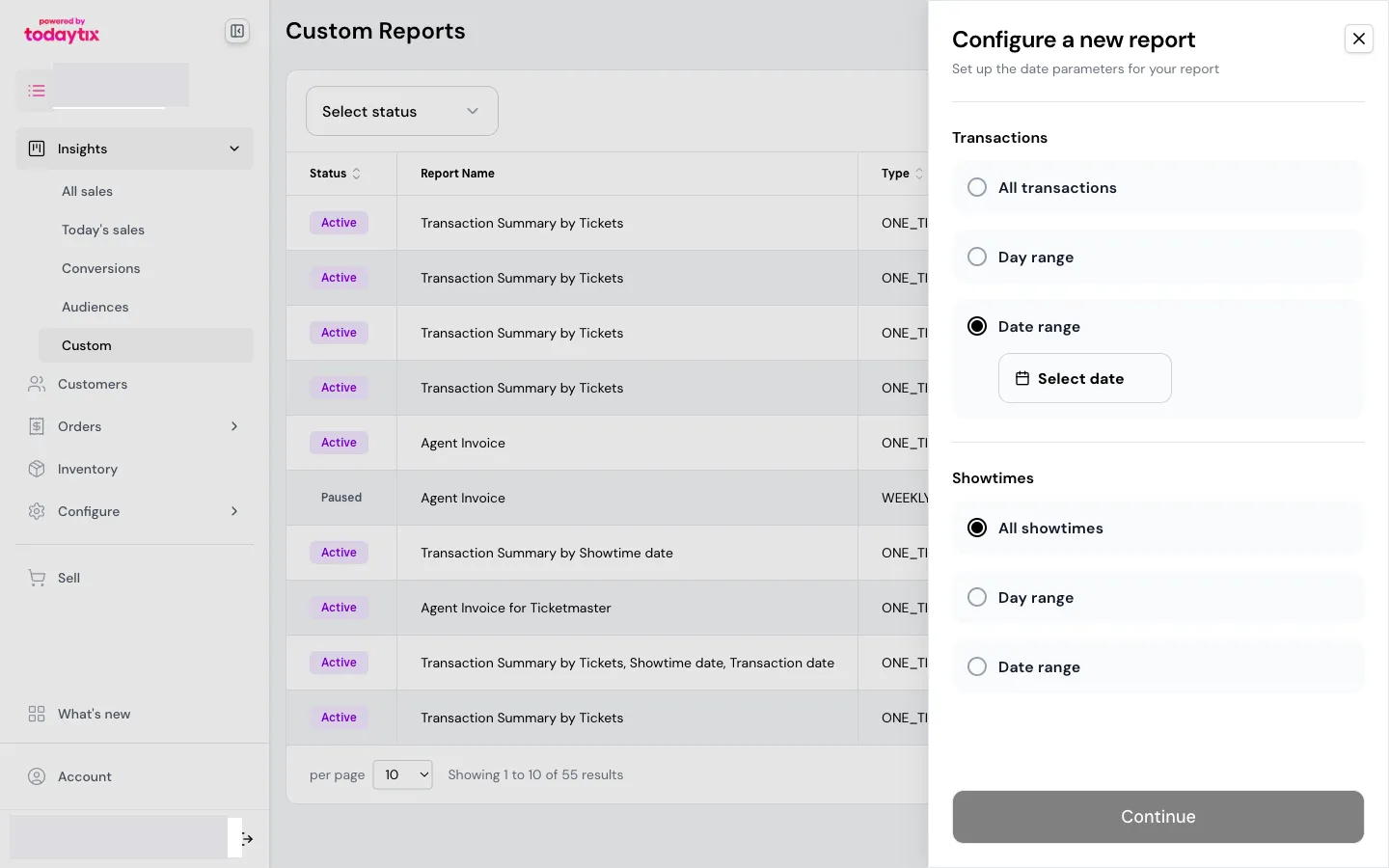
Set up the date parameters for your report. Both the Transactions and Performances sections offer the same three options.
### Transactions
Choose which transactions to include based on when they were processed.
| Filter | What it does | When to use |
|---|---|---|
| **All transactions** | No date filter | Full history or audit reports |
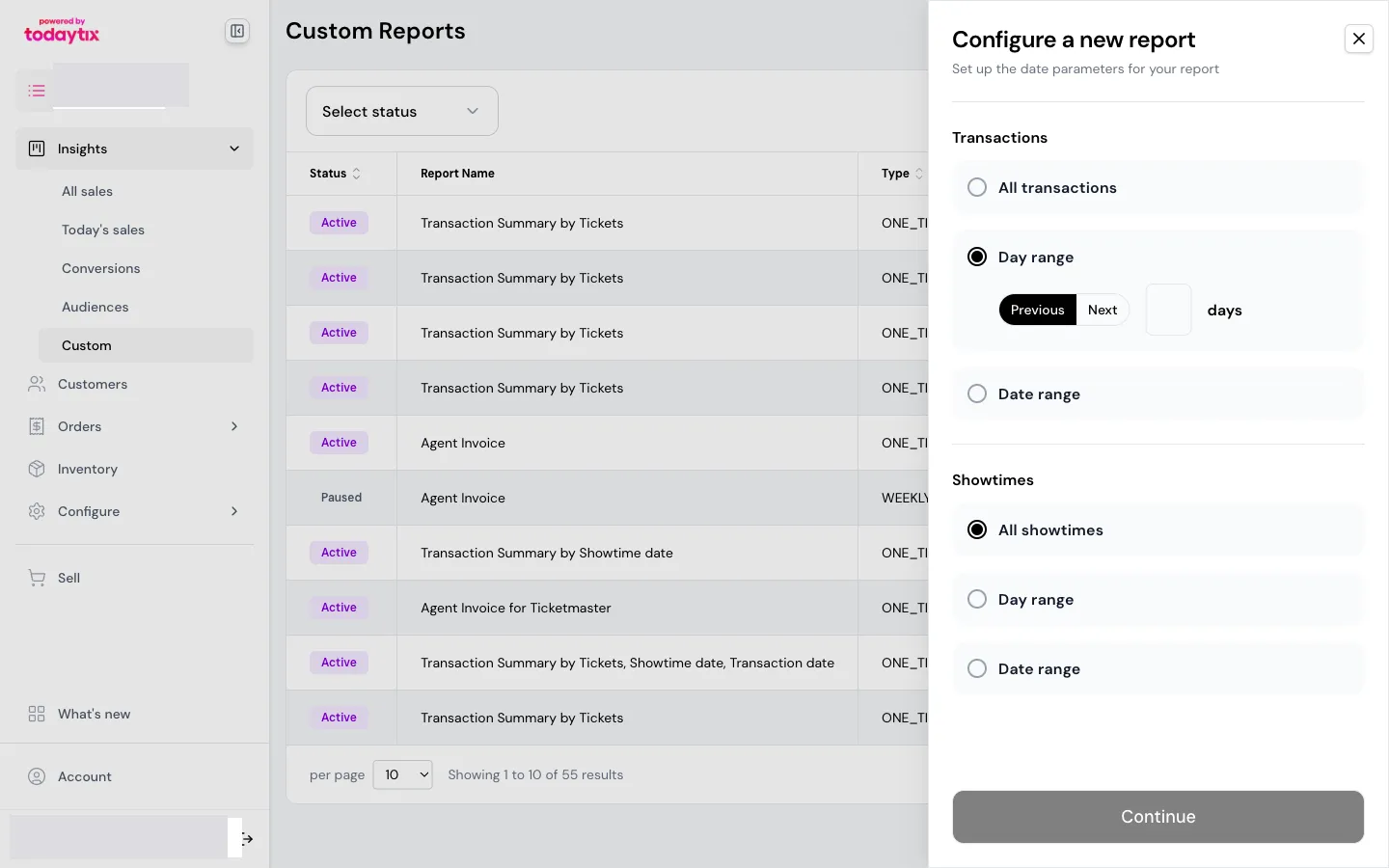
| **Day range** | Rolling window (e.g. "previous 7 days") | Recurring weekly/daily reports — the window moves with each send |
| **Date range** | Fixed start and end dates | One-off reports for a specific period (e.g. holiday season) |
**Day range** gives you a **Previous** / **Next** toggle and a number-of-days input. Choose "Previous" for historical data (e.g. last 7 days of sales) or "Next" for forward-looking data (e.g. upcoming orders).
**Date range** opens a calendar picker where you select specific start and end dates.
### Performances
Choose which performances to include. The options mirror the transaction filters.
| Filter | What it does | When to use |
|---|---|---|
| **All performances** | Every performance | General reporting |
| **Day range** | Rolling window (e.g. "next 7 days") | Upcoming performance summaries or advance order reports |
| **Date range** | Fixed performance dates | Reports for a specific run or season |
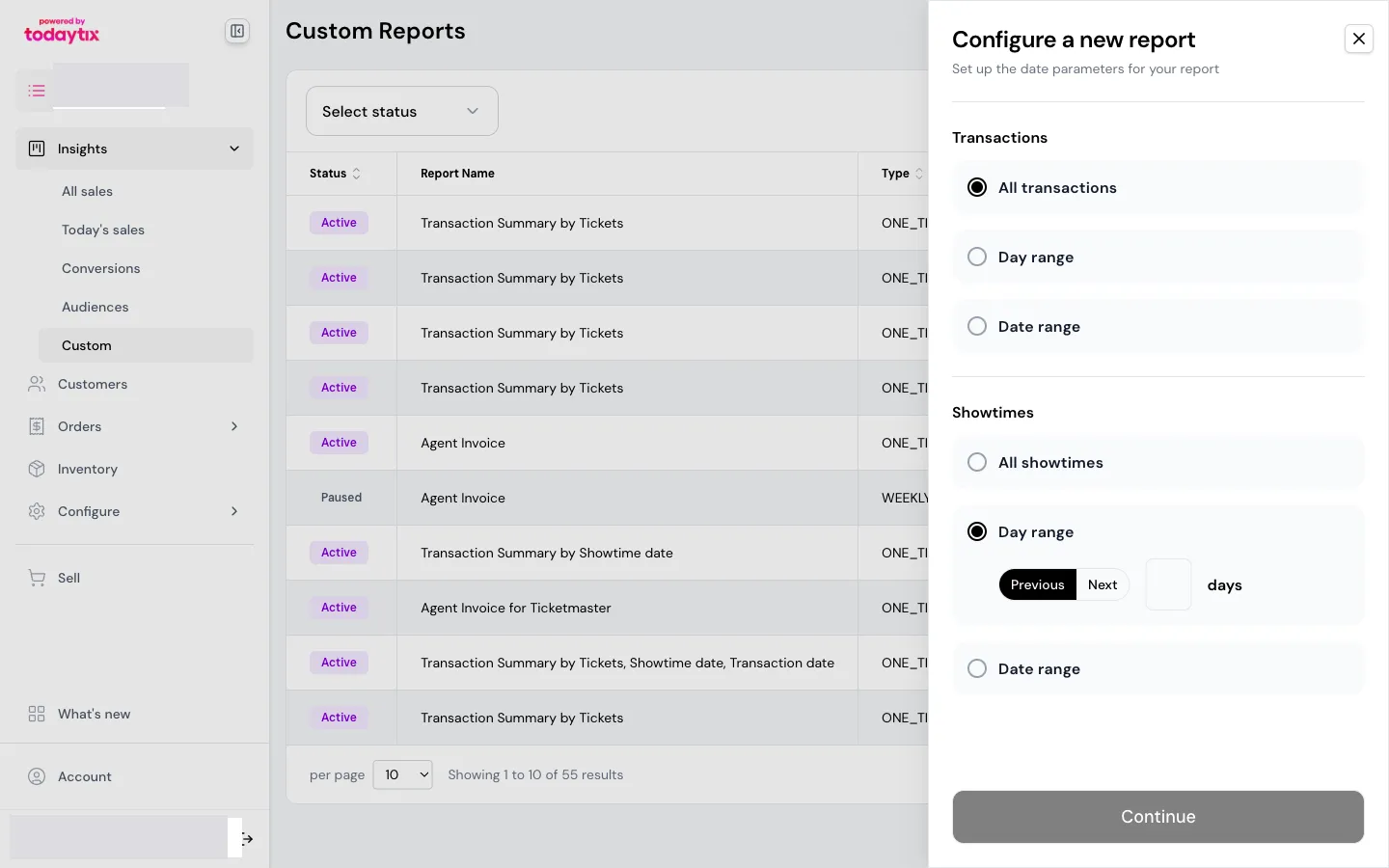
You can combine transaction and performance filters independently. For example: all transactions, but only performances in the next 7 days — useful for checking advance orders.
Transaction dates reflect when each charge or refund was processed — not when the original order was placed. A ticket sold last week and refunded this week will appear in this week's report as a refund.
If you need to see the full lifecycle of a ticket (sale and refund together), use a date range wide enough to capture both events.
Click **Continue** to proceed.
## Step 2: Report details
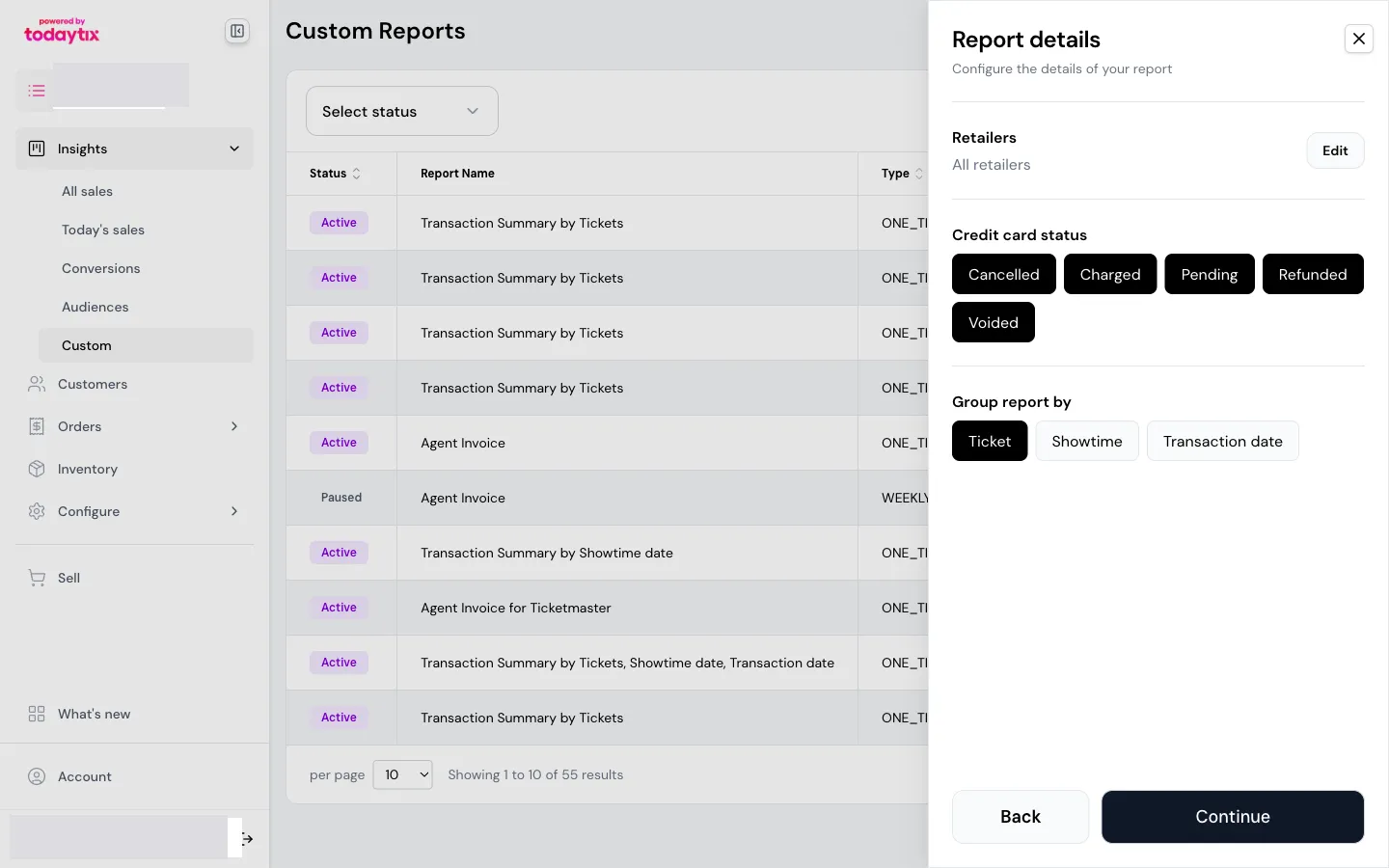
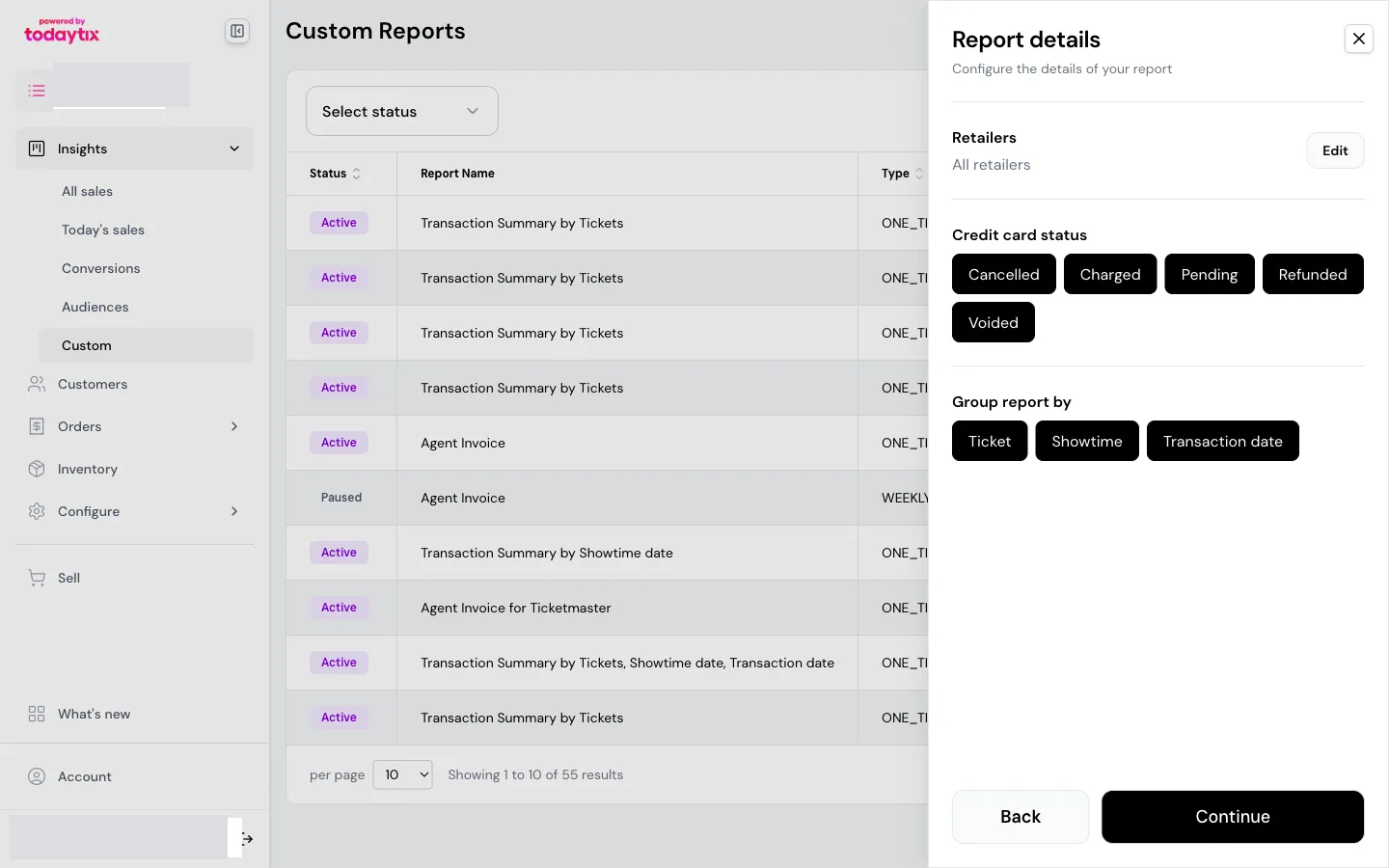
Configure the details of your report.
### Retailers
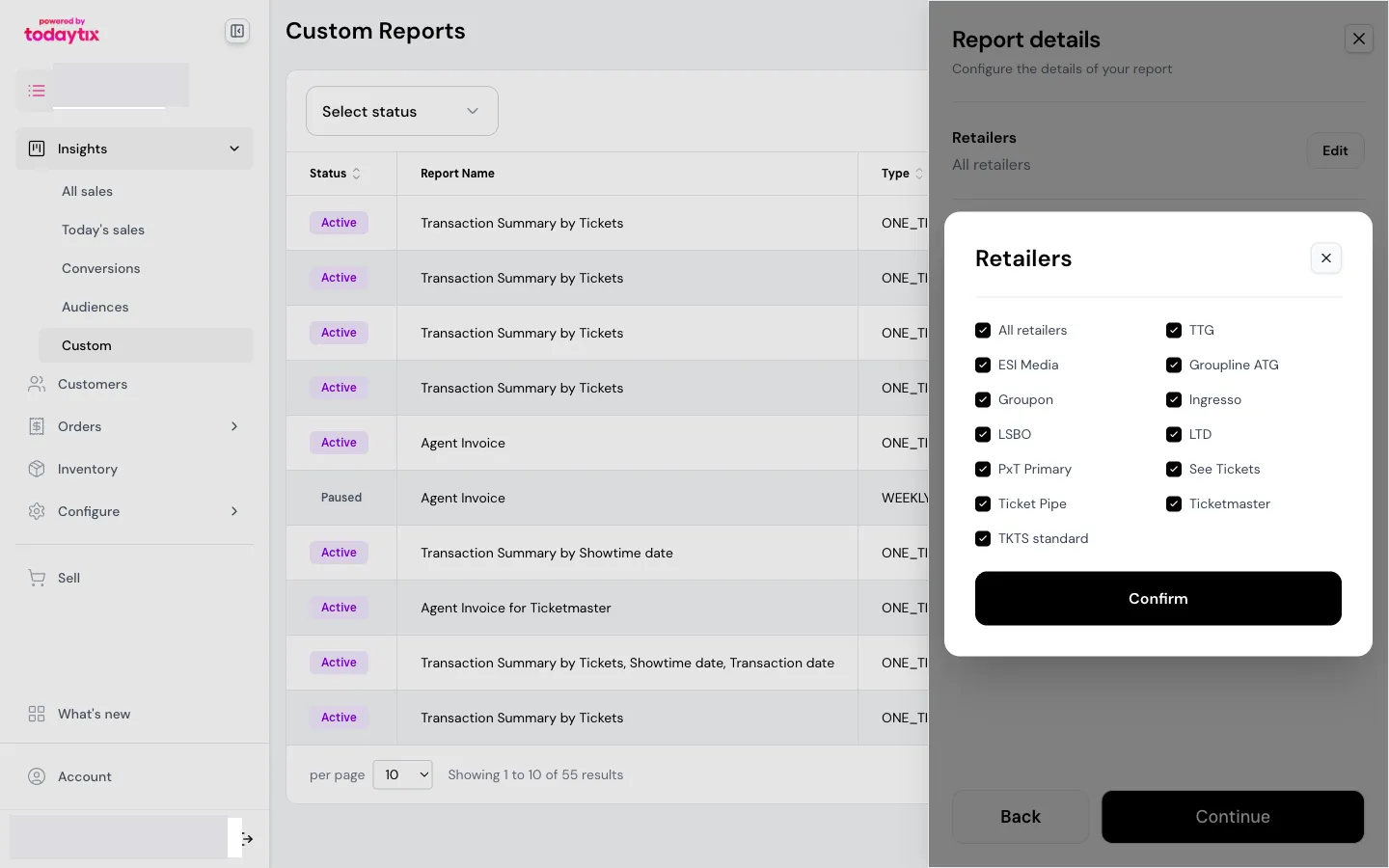
By default, all retailers are included. Click **Edit** to open the retailer picker, where you can select or deselect individual retailers.
### Credit card status
Select which transaction statuses to include. All statuses are selected by default — click a pill to toggle it on or off.
| Status | Description |
|---|---|
| **Charged** | Completed sales |
| **Refunded** | Processed refunds |
| **Pending** | Transactions awaiting processing |
| **Cancelled** | Cancelled transactions |
| **Voided** | Voided transactions |
Refunds net against their original sale. If you include both Charged and Refunded, the totals reflect the net position. Including all statuses is recommended for most use cases.
### Group report by
This determines what each row in your report represents. Select one or more groupings — each generates a separate report table in the same email.
| Grouping | Each row represents | Best for |
|---|---|---|
| **Ticket** | One ticket | Auditing individual transactions, tracing refunds, checking specific orders |
| **Performance** | One performance | Comparing performance-level revenue, checking capacity by date |
| **Transaction date** | One day of transactions | Tracking daily sales volume, reconciling bank deposits |
You can select all three to receive a comprehensive set of views in one report.
Click **Continue** to proceed.
## Step 3: Report delivery
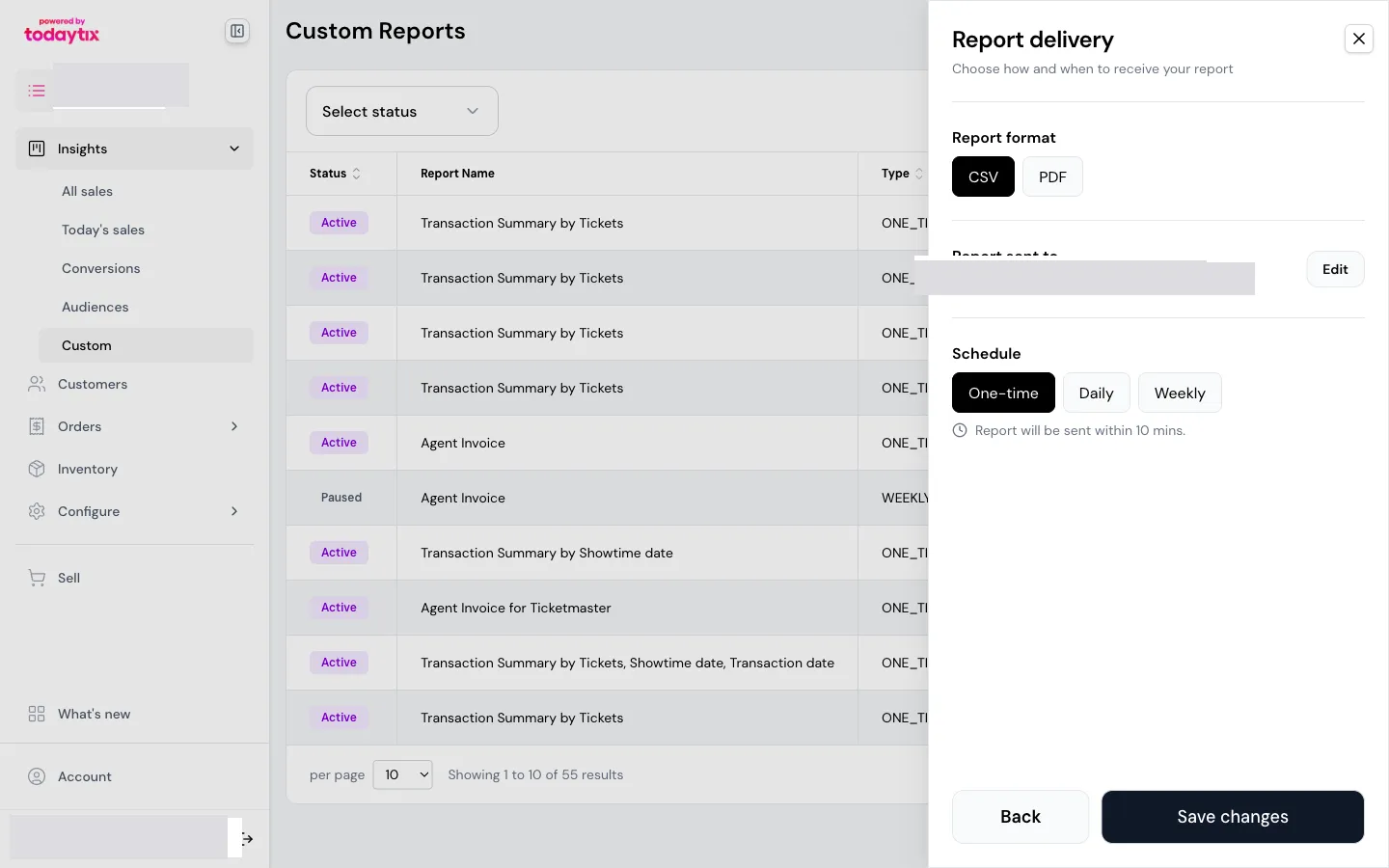
Choose how and when to receive your report.
### Report format
| Format | Best for |
|---|---|
| **CSV** | Importing into spreadsheets, plugging into BI tools (Excel, Tableau, Power BI), running calculations |
| **PDF** | Sharing with colleagues or retailers — cleaner, branded presentation |
Select one or both formats.
### Report sent to
The report is sent to your email by default. Click **Edit** to add additional recipients:
- Colleagues who need visibility
- Retailers who want sales updates
Recipients do not need a portal account — they receive the report by email only.
### Schedule
| Schedule | Behaviour |
|---|---|
| **One-time** | Sends the report within 10 minutes. No recurrence. |
| **Daily** | Sends every day at 5:00 AM. |
| **Weekly** | Sends once per week on your chosen day. |
Selecting **Weekly** reveals a day-of-week picker so you can choose which day the report is sent.
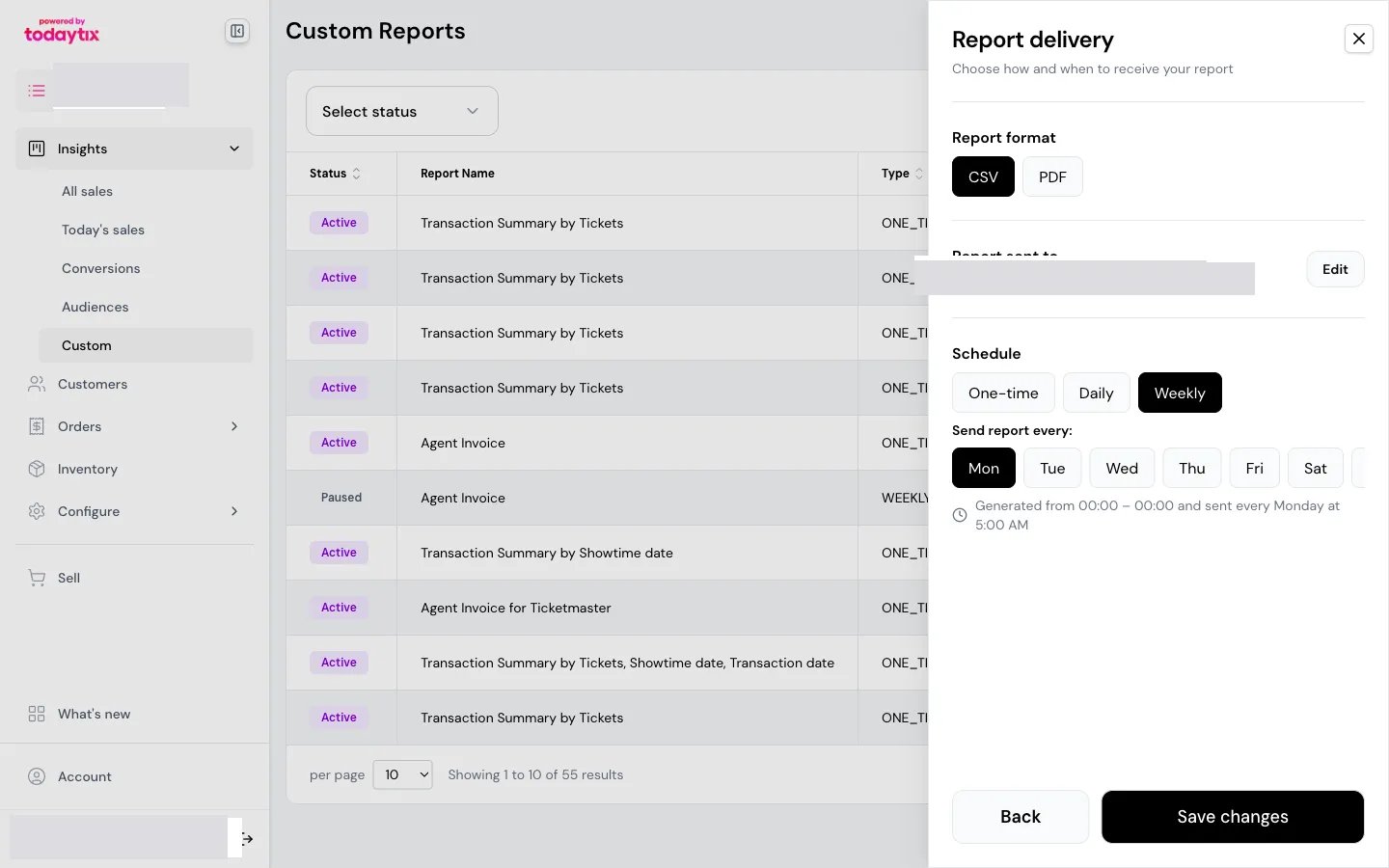
Recurring schedules pair well with day ranges. For example, a weekly report with "previous 7 days" of transactions delivers a rolling weekly summary every Monday.
## Save and send
Click **Save changes** to activate the report. One-time reports arrive within 10 minutes. Scheduled reports begin on their next scheduled send.
## Next steps
- [Scheduling & Managing Reports](/partner-portal/scheduling-managing-reports) — edit, pause, or resume existing reports
- [Understanding Report Output](/partner-portal/understanding-report-output) — how to read the emailed report
- [Report Column Reference](/partner-portal/report-column-reference) — what every column means